tipue_search abandoned
Element theme documentation suggests using the following configuration to enable search, which relies on the tipue_search plugin:
PLUGINS = ['tipue_search']
DIRECT_TEMPLATES = ['search']
Unfortunately, this plugin and the jquery code it relies on is abandoned, as stated on Pelican Plugin's page of the plugin:
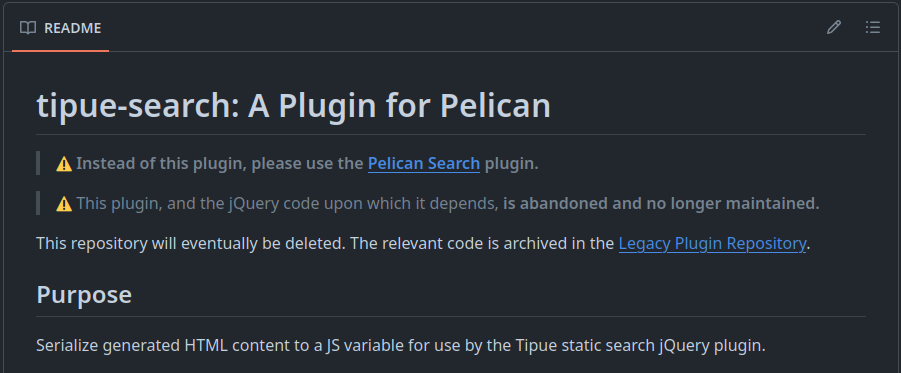
pelican_search plugin should be used instead, but how?
pelican_search abandoned
pelican_search relies on stork and this tool should be installed prior to install and run the Pelican plugin:
Install Stork on Ubuntu:
cd ~/bin
wget -O stork https://files.stork-search.net/releases/v1.6.0/stork-ubuntu-20-04
chmod +x stork
Unfortunately, running stork fails on Ubuntu 22.04:
$ stork
stork: error while loading shared libraries: libssl.so.1.1: cannot open shared object file: No such file or directory
At this point, I started searching for a solution. Found one for 2-years old Ubuntu 20 (https://stackoverflow.com/a/72633324) that required manually installing a specific version of OpenSSL and that I would not have followed even if it applied to Ubuntu 22.
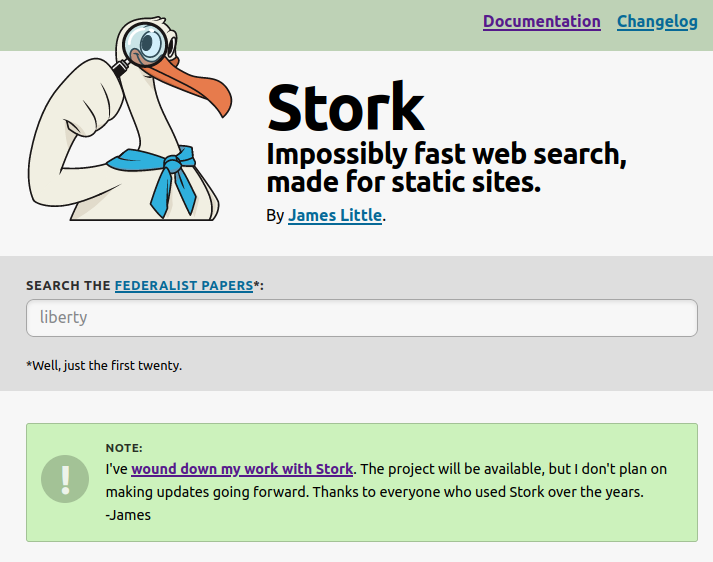
And then I found out the one maintainer of the project had stepped out a year ago:
Sources
Use Google search instead
I don't have enough time to investigate alternative solutions to stork and the pelican_search plugin.
Change the search form
However, I can customize the Elegant Theme search field, that I have forked.
In file base.html, I can replace
<li><form class="navbar-search" action="{{ SITEURL }}/{{ SEARCH_URL }}" onsubmit="return validateForm(this.elements['q'].value);"> <input type="text" class="search-query" placeholder="Search" name="q" id="tipue_search_input"></form></li>
by the following and create a Google search in a new window with site:www.javatronic.fr as a filter:
{% if SEARCH_URL %}
<li><form class="navbar-search" action="{{SEARCH_URL}}" onsubmit="return validateForm(this.elements['q'][0].value);" target="_blank"> <input type="text" class="search-query" placeholder="Search" name="q" id="tipue_search_input"><input type="hidden" name="q" value="site:{{ SITEURL }}"></form></li>
{% endif %}
Enable indexing by Google
To appear in search results, the website must first be crawled and indexed by Google's robots.
This can be achieved by adding a robots.txt file to the root of the website and creating a site map.
Add robots.txt to Pelican
Create file extra/robots.txt, informing that no robot (not only Google) can crawl any page of the website but those
indicated in the referred sitemap file.
User-agent: *
Disallow:

Sitemap: https://www.javatronic.fr/sitemap.xml
Have this file deployed to the generated website by adding the following to pelicanconf.py:
STATIC_PATHS.append("extra/robots.txt")
EXTRA_PATH_METADATA["extra/robots.txt"] = {"path": "robots.txt"}
Create a sitemap
There is a plugin to generate a sitemap within the official pelican plugin repository.
For the small additions it provides, I decided to use the pelican-extended-sitemap plugin.
- Add
pelican-extended-sitemaptorequirements.txt - In
pelicanconf.py, enablepelican-extended-sitemapwithPLUGINS.append("extended_sitemap") - Since my resume is a page, I want to boost the priority of pages compared to the default configuration and I'll
overwrite
EXTENDED_SITEMAP_PLUGINinpelicanconf.py:EXTENDED_SITEMAP_PLUGIN = { 'priorities': { 'index': 1.0, 'articles': 0.8, 'pages': 0.9, 'others': 0.4 }, 'changefrequencies': { 'index': 'daily', 'articles': 'weekly', 'pages': 'monthly', 'others': 'monthly', } }
Ask Google to reindex
Simply waiting a few days for Google to reindex the website didn't work for me.
I decided to use the submission of a sitemap in Search Console to get re-indexed.
verify website property
To add a website to your Google Account's Search Console, you first need to prove you own it.
- Go to Google's search console: https://search.google.com/search-console/welcome?action=inspect
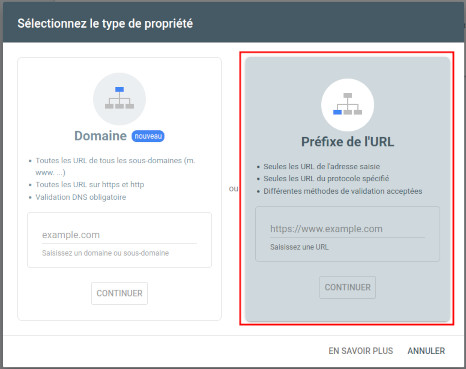
- Select the Inspection method, I selected "URL prefix" as I have subdomains I don't need/want indexed
- Select property method with HTML file (the default one)
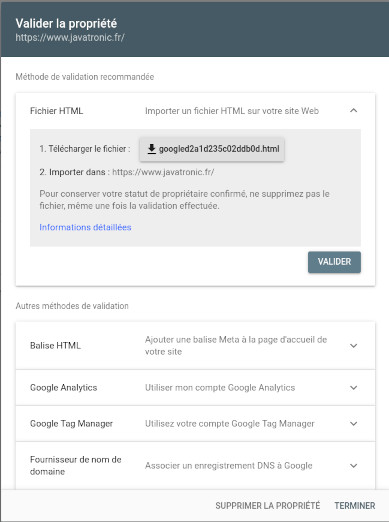
- Download the HTML file, store it in the
content/extradirectory - Keep note of the original name of the file and rename it to
google_property_verification_file(or any other name without the.htmlsuffix to avoid Pelican error not finding a title) - Add the following to
pelicanconf.py, using the original name of your file:STATIC_PATHS.append("extra/google_property_verification_file") EXTRA_PATH_METADATA["extra/google_property_verification_file"] = {"path": "googled2a1d235c02ddb0d.html"} - Commit and publish the file and changes to
pelicanconf.py - Click on "Validate"
- After a few seconds, the Search Console for the website is accessible
submit the sitemap
- In the Search Console, go to sitemaps
- Input the URL to the
sitemap.xmlfile
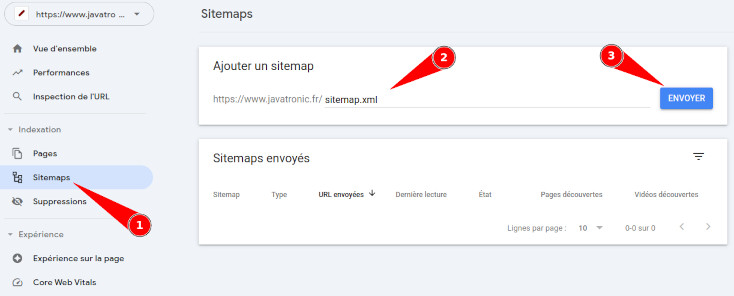
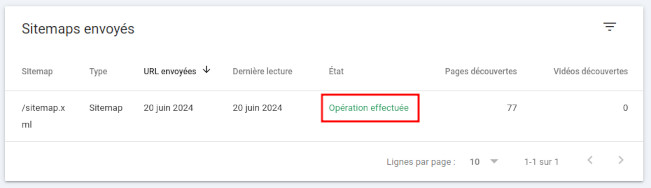
- Validate and confirm, after a few seconds, whether Google successfully read the sitemap
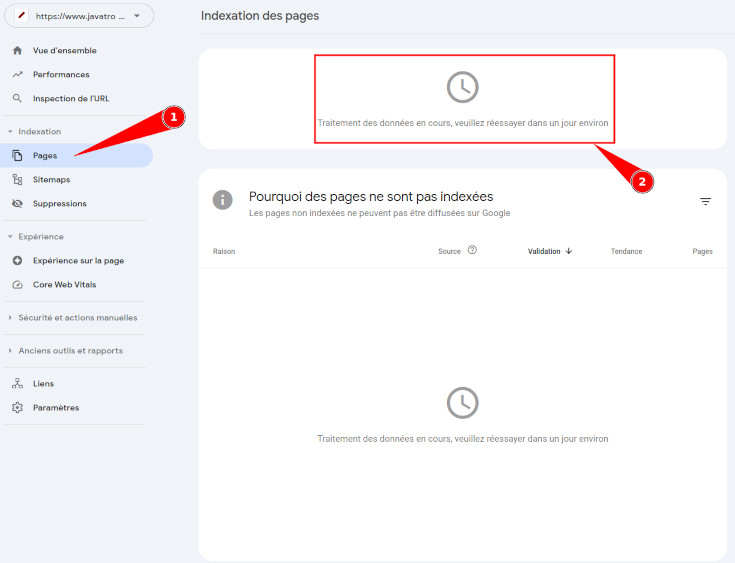
verify indexing is in progress
In the search console, go to "Pages" and confirm indexing is pending
Sources
- Google's documentation: How to write and submit a robots.txt file
- Google's documentation: Ask Google to recrawl your URLs
- Google's documentation: Submit your sitemap to Google
- Jack's Digital Workbench: Fine Tuning Pelican: Enabling Website Crawling (who coincidentally also uses both Pelican and the Elegant theme)